
Ursprünglich veröffentlicht auf LinkedIn am 2025-01-19.
Diese Laborumgebung wurde für eine Präsentation an einer örtlichen Schule erstellt. Die Schule, eine kleine, gemeinschaftlich geführte Einrichtung, die auf Montessori-Prinzipien basiert, betreut etwa 70 Kinder und Lehrer. Open Source und Freie Open-Source-Software (FOSS) werden von einigen der Lehrkräfte geschätzt, und sie baten um Unterstützung bei bestimmten Aspekten der Schul-Infrastruktur. Unter Berücksichtigung dieser Präferenz wurde eine Cloud-Lösung als ungeeignet erachtet.
Wichtiger Hinweis: Dies ist ausschließlich eine LABOR-Umgebung und sollte NICHT für Produktionszwecke verwendet werden. Es fehlen entscheidende Sicherheitsmaßnahmen, einschließlich Datenschutz, Backups, Verschlüsselung, Netzwerkisolierung und andere für Produktionsumgebungen erforderliche Elemente. Dieses Labor dient ausschließlich Demonstrations- und Bildungszwecken.
Ziel#
Das primäre Ziel bestand darin, die Dateifreigabe und Benutzerverwaltung auf Linux-Geräten innerhalb der Schule zu optimieren.
Laborumgebung#
Da die Schule über kein dediziertes IT-Labor für solche Projekte verfügt (vorhandene Raspberry Pi-Geräte werden hauptsächlich für experimentelles Hacken und Freizeitzwecke verwendet), wurde beschlossen, das Labor in einer virtualisierten Umgebung auf dem persönlichen Laptop des Entwicklers zu erstellen. Dies bot auch die Möglichkeit, die Leistung eines neuen Tuxedo Infinitybook Pro Intel Gen9-Systems zu bewerten.
Verschachtelte Virtualisierung#
Um dies zu erreichen, war verschachtelte Virtualisierung erforderlich, die durch KVM aktiviert wird, das in den Linux-Kernel integriert ist. Die folgenden Schritte überprüfen die KVM-Verfügbarkeit auf dem aktuellen Gerät.
Fazit
Die Ausgabe bestätigt, dass KVM und verschachtelte Virtualisierung auf diesem Gerät unterstützt werden. Dies ermöglicht die Erstellung virtueller Maschinen innerhalb anderer virtueller Maschinen und bietet eine flexible Umgebung für Experimente und Entwicklung.
Virtual Machine Manager#
Mit libvirt, qemu und virt-manager gibt es Tools, um die Dinge einzurichten. virt-manager ist eine sehr einfache Desktop-Benutzeroberfläche zur Verwaltung von libvirt. Da es ein sehr häufiges Paket in vielen Distributionen ist, lässt es sich auch einfach unter TuxedoOS installieren.
Proxmox-Setup#
Laden Sie dann die Installations-ISO für Proxmox-VE herunter und fügen Sie sie einem Verzeichnis hinzu, auf das libvirt zugreifen kann. In diesem Fall habe ich ein Verzeichnis virtual-images in meinen Dokumenten erstellt.

Erstellen wir eine Proxmox-VE-Instanz.
Sobald die Konfiguration abgeschlossen ist, wird eine neue virtuelle Maschine erstellt. Der Proxmox-VE-Setup-Prozess beginnt dann und verbindet sich automatisch mit der VM. Falls diese automatische Verbindung fehlschlägt, verwenden Sie die virt-viewer- oder virt-manager-Benutzeroberfläche, um eine Verbindung zur grafischen Schnittstelle der virtuellen Maschine herzustellen.
Für diese Laborumgebung wurde eine einzelne Festplatte konfiguriert. Um die Funktionen von Proxmox zu erkunden, die auf dem ZFS-Dateisystem basieren, wurde ZFS als primäres Dateisystem für das Labor gewählt.
Wichtiger Hinweis: Beim Ausführen mehrerer Instanzen muss bei der IP-Adressvergabe sorgfältig vorgegangen werden. Stellen Sie sicher, dass jede Instanz innerhalb des virtuellen Netzwerks eine eindeutige IP-Adresse hat. Andernfalls kann es zu unerwartetem Netzwerkverhalten kommen, was eine wertvolle Lernmöglichkeit in Bezug auf Netzwerkkonfigurationen darstellt.
Während die Automatisierung des Konfigurationsprozesses möglich ist, wurde dies als über den Rahmen dieser Präsentation hinausgehend erachtet.

Cluster-Setup
Melden Sie sich bei einem Proxmox-Knoten an und richten Sie einen Cluster über Datacenter > Cluster > “Cluster erstellen” ein. Später benötigen wir die Join-Informationen und kopieren diese an einen anderen Knoten dieses Clusters.


Dies ist eine Base64-kodierte Zeichenfolge. Falls Sie daran interessiert sind, was darin enthalten ist, ist base64 -d Ihr Freund.

Univention Corporate Server#
Also haben wir einen laufenden Proxmox-Cluster und können das ISO-Image hochladen, um Univention Corporate Server zu installieren. Das Installations-ISO ist als Download von Univention verfügbar.

Nach dem Hochladen des UCS-Installations-ISO eine VM auf demselben pve-Knoten erstellen.
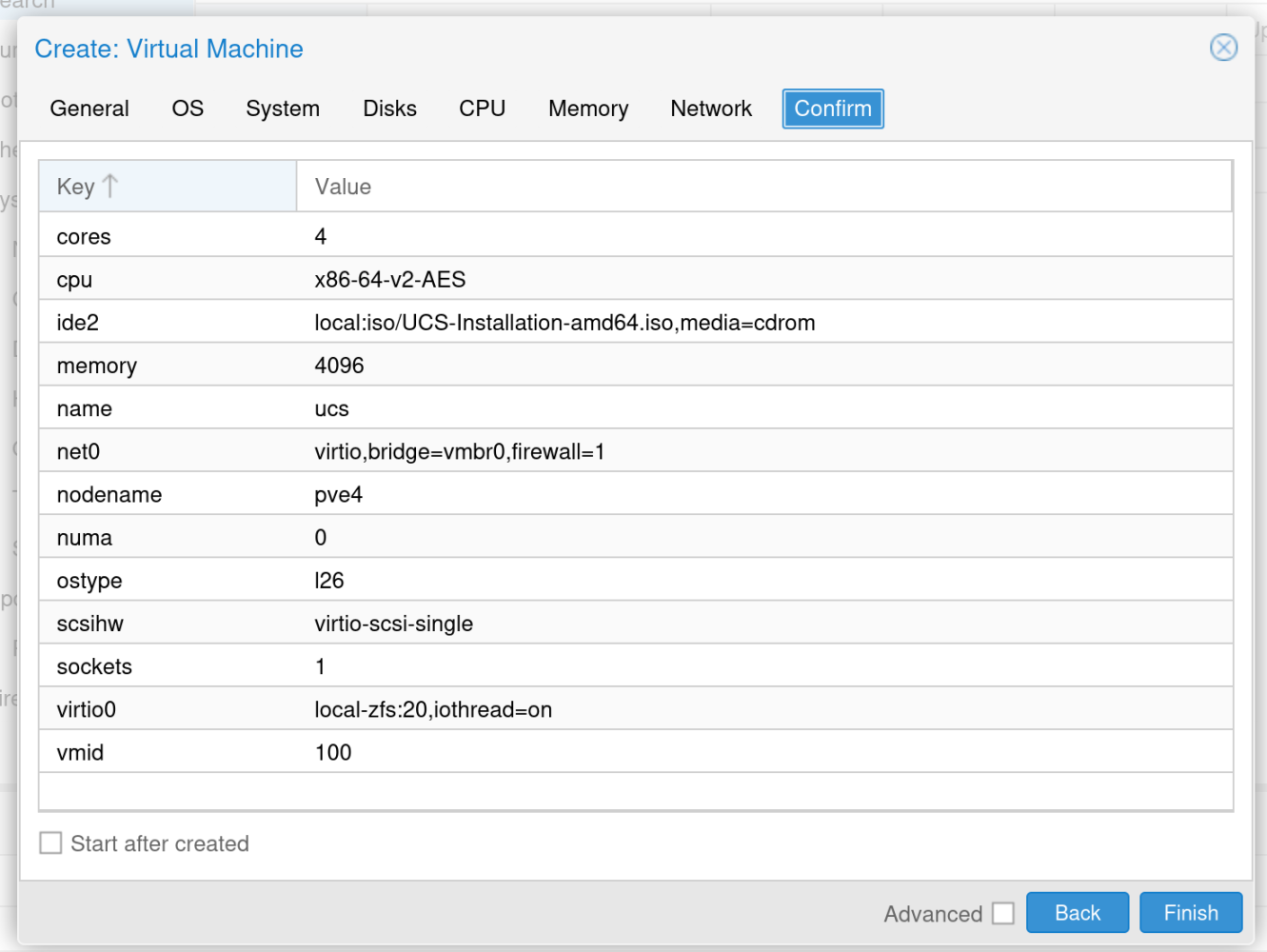
Die Konsole der virtuellen Maschine kann über den Browser geöffnet werden.

In diesem Labor wurden die Standard-Einstellungen für die UCS-Installation verwendet. Nach der OS-Installation startet UCS neu und der Konfigurationsprozess kann beginnen. Es wird ein Aktivierungsschlüssel benötigt, der per E-Mail erhalten wird.
In dieser Laborumgebung habe ich eine neue UCS-Domäne erstellt.

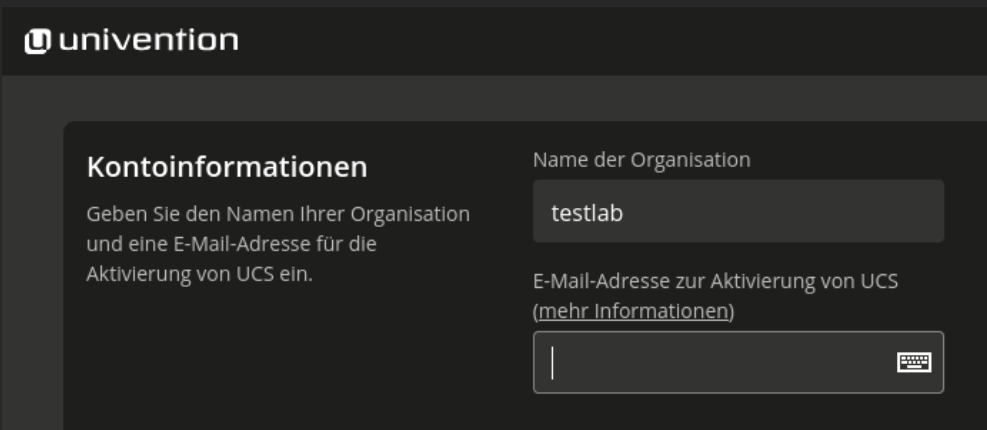
Geben Sie den Namen der Organisation und eine gültige E-Mail-Adresse ein. Univention verwendet diese Adresse, um den Aktivierungsschlüssel an Sie zu senden.
Konfigurieren Sie den FQDN der Maschine und die LDAP-Root.

Überprüfen Sie die Einstellungen und starten Sie die Systemkonfiguration.
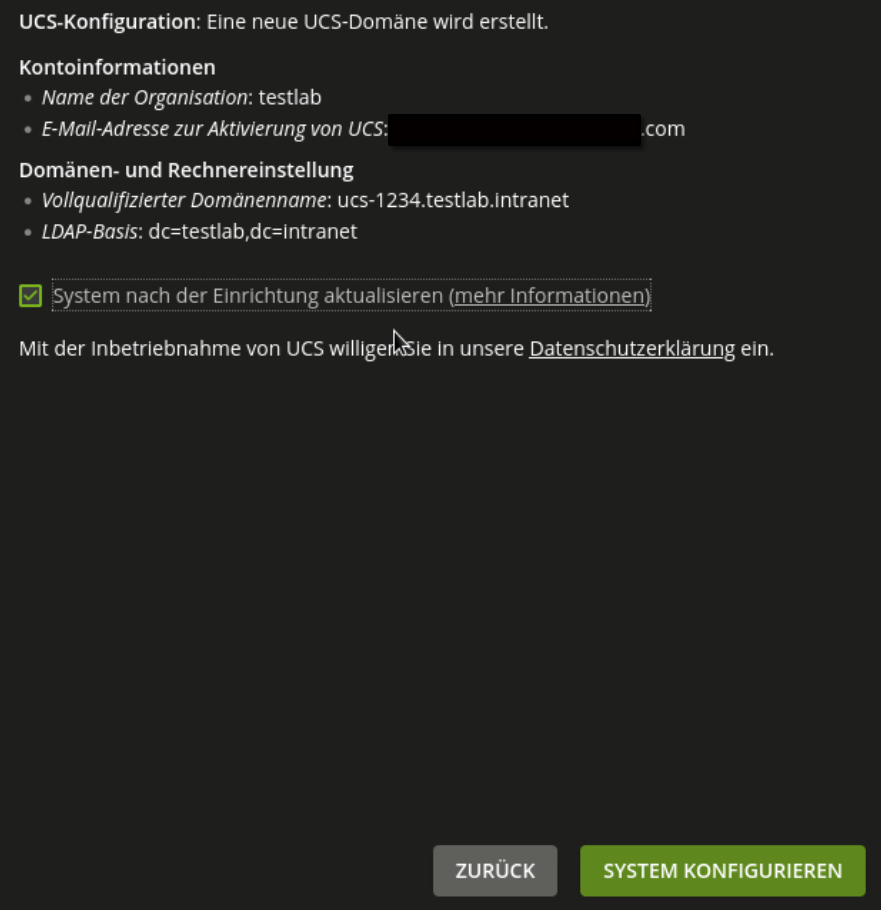
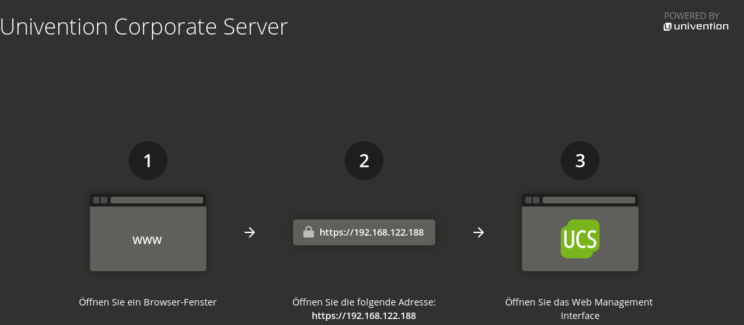
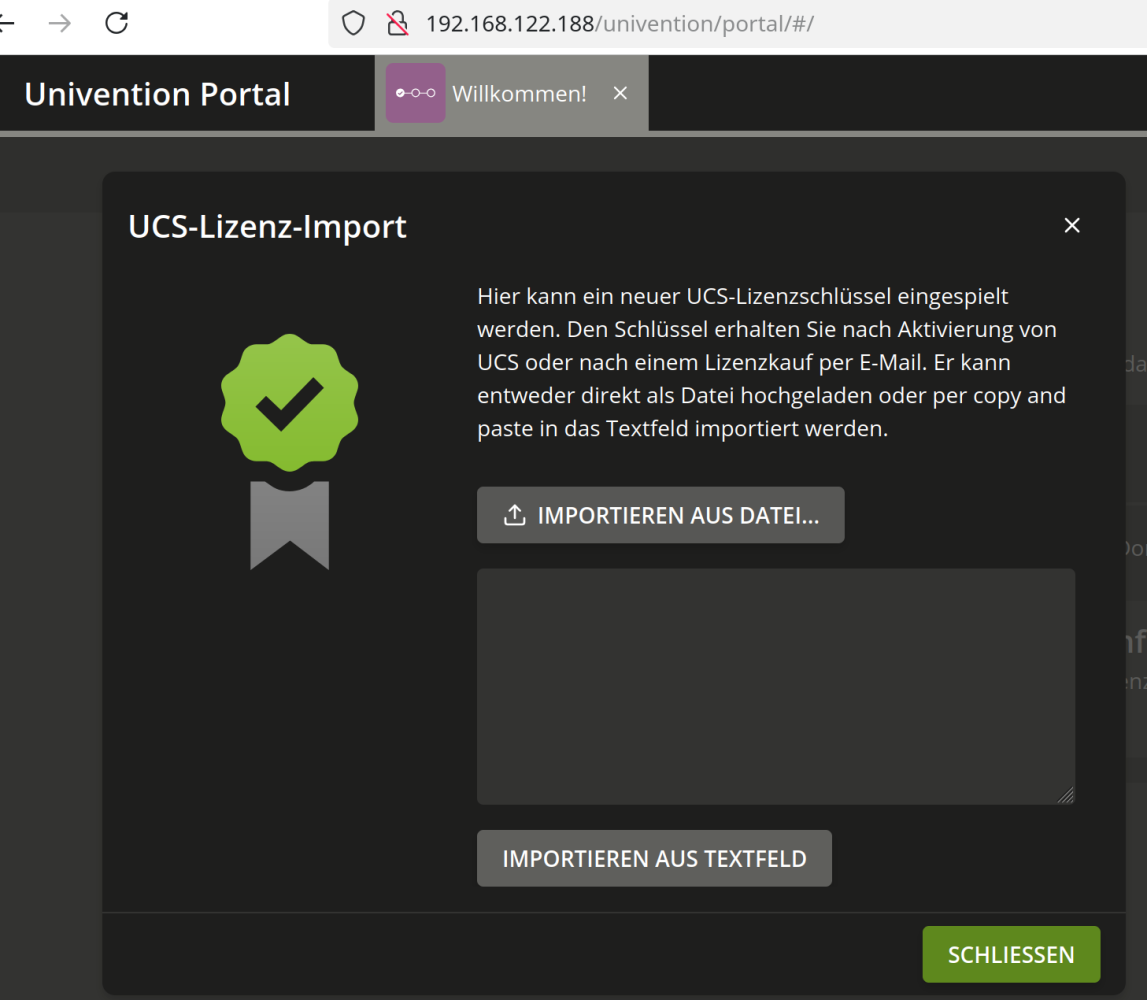
Der Konfigurationsprozess richtet die gesamte Domäne und Maschine ein. Wenn dieser abgeschlossen ist, können Sie sich als Administrator über einen Webbrowser anmelden. Um zu beginnen, importieren Sie die per E-Mail erhaltene Lizenz unter System > Willkommen > Lizenzimport.
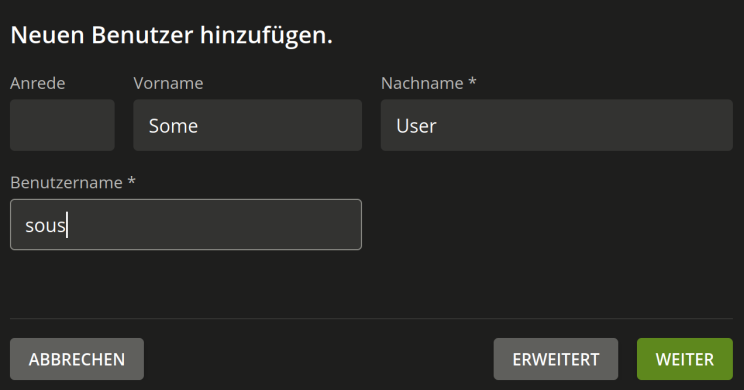
Erstellen Sie ein Benutzerkonto innerhalb des Univention Corporate Servers (UCS), das für Subsequent-Logins vom Linux-Mint-Betriebssystem aus verwendet wird.
Linux Mint#
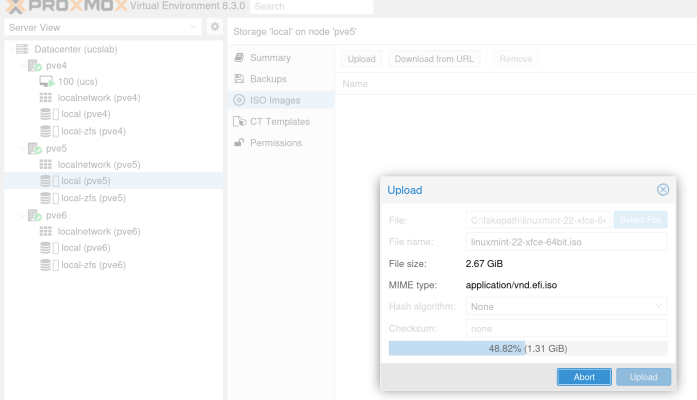
Laden Sie das ISO-Image vom Linux Mint Projekt herunter und laden Sie es auf einen Proxmox-Knoten hoch.
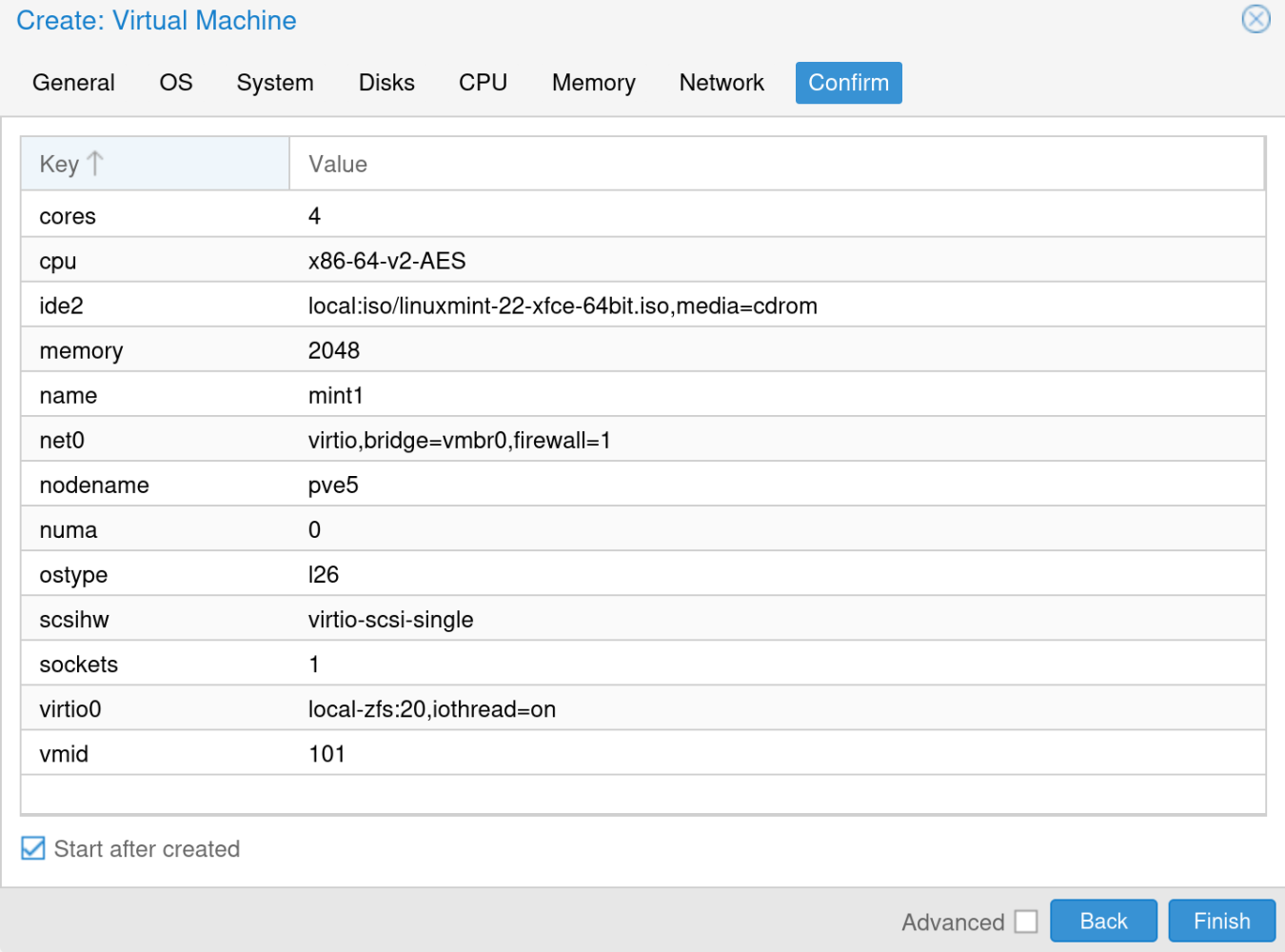
Verbinden Sie sich mit der grafischen Konsole und installieren Sie Linux Mint. Für das Labor wurde die OEM-Installation mit keinen speziellen Einstellungen verwendet.
Univention Domain Join#
Es gibt ein Problem, wenn der Univention-Domain-Join mit Linux Mint verwendet wird. Aufgrund fehlender Abhängigkeiten wird dies fehlschlagen. Das ist einfach zu lösen. Univention, vielleicht schauen Sie sich mal hier an.
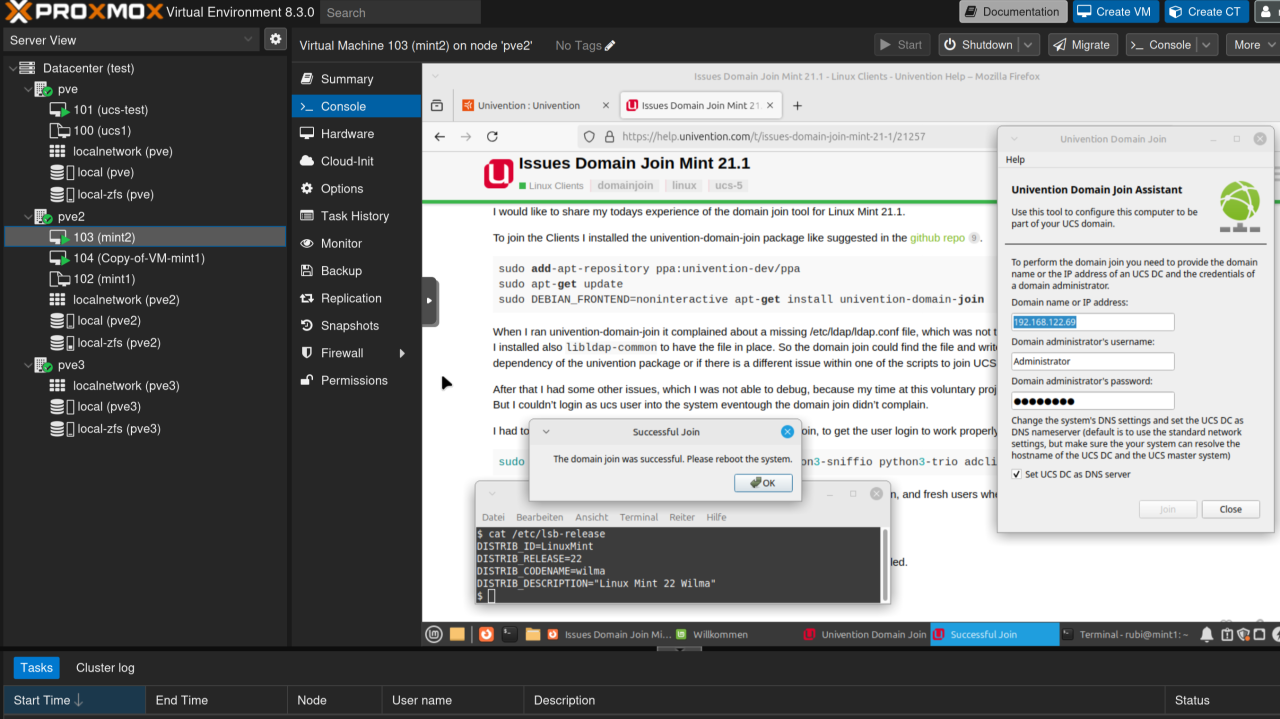
Öffnen Sie Univention Domain Join und fügen Sie den Computer hinzu.

In UCS wird das hinzugefügte Gerät als Ubuntu-Computer aufgelistet.

Starten Sie den Linux-Mint-Computer neu und melden Sie den OEM-Benutzer ab. Vielleicht sollten Sie sich später auch vom OEM-Benutzer trennen. Überprüfen Sie jetzt, ob es möglich ist, sich als der Benutzer anzumelden, den wir in UCS erstellt haben.

Es ist möglich, Gruppen über UMC zu verwalten und zuzuweisen, daher empfehle ich, die Dokumentation zu lesen.
Nextcloud#
Es ist möglich, Nextcloud über das Univention App Center zu installieren. Es konfiguriert Nextcloud und integriert es in die UCS-Umgebung. Es gibt erweiterte Setups möglich. Ich möchte nur erwähnen, dass Univention seinen eigenen Mechanismus zur Konfiguration integrierter Apps hat. Seien Sie sich dessen bewusst, bevor Sie Konfigurationsdateien innerhalb von UCS ändern.

In den UCS-Benutzereinstellungen wird die Nextcloud-App automatisch hinzugefügt.

Das Univention-Portal dient als zentraler Punkt für die Präsentation der verfügbaren Dienste. Dadurch können Benutzer auf dem Linux-Mint-Client leicht über das Portal auf den Nextcloud-Dienst zugreifen.


Zusätzliche Funktionen#
Proxmox-VM-Replikation
Ich habe Ceph in der Vergangenheit in größeren Rechenzentrums-Setups mit vielen Maschinen und Leaf-Spine-Netzwerkarchitektur verwendet. Das wird in diesem Fall nicht möglich sein. Aber da Proxmox ZFS unterstützt, möchte ich auch einige Funktionen dort testen. Eine Funktion ist die Replikation.

Proxmox-VM-Migration
Eine weitere Möglichkeit ist die Migration von VMs zwischen Knoten. Seien Sie vorsichtig mit verknüpften Klonen von VM-Vorlagen, da die Migrationsfunktionen nicht unterstützt werden, wenn die VM lokalen Speicher verwendet.

Fazit#
Open Source bietet viele Lösungen mit umfassenden Funktionen für verschiedene Bedürfnisse. Für dieses Projekt umfassen die nächsten Schritte die Definition der Netzwerkarchitektur, der Hardware-Anforderungen sowie angemessener Backup- und Sicherheitsmaßnahmen.
Es ist wichtig zu beachten, dass keines der in diesem Artikel erwähnten Unternehmen eine finanzielle Vergütung erhalten hat.
Besonderer Dank gilt den lebendigen Communities rund um Open-Source-Software und insbesondere denen, die folgende Projekte unterstützen:
Fühlen Sie sich frei, mich mit brennenden Fragen oder brillantem Verbesserungsideen zu kontaktieren! Und denken Sie daran: 2025 ist das Jahr des Linux-Desktops (zumindest in diesen heiligen Hallen des Lernens).
Möge die Kraft von Open Source mit Ihnen allen sein!
Gerhard Sulzberger